
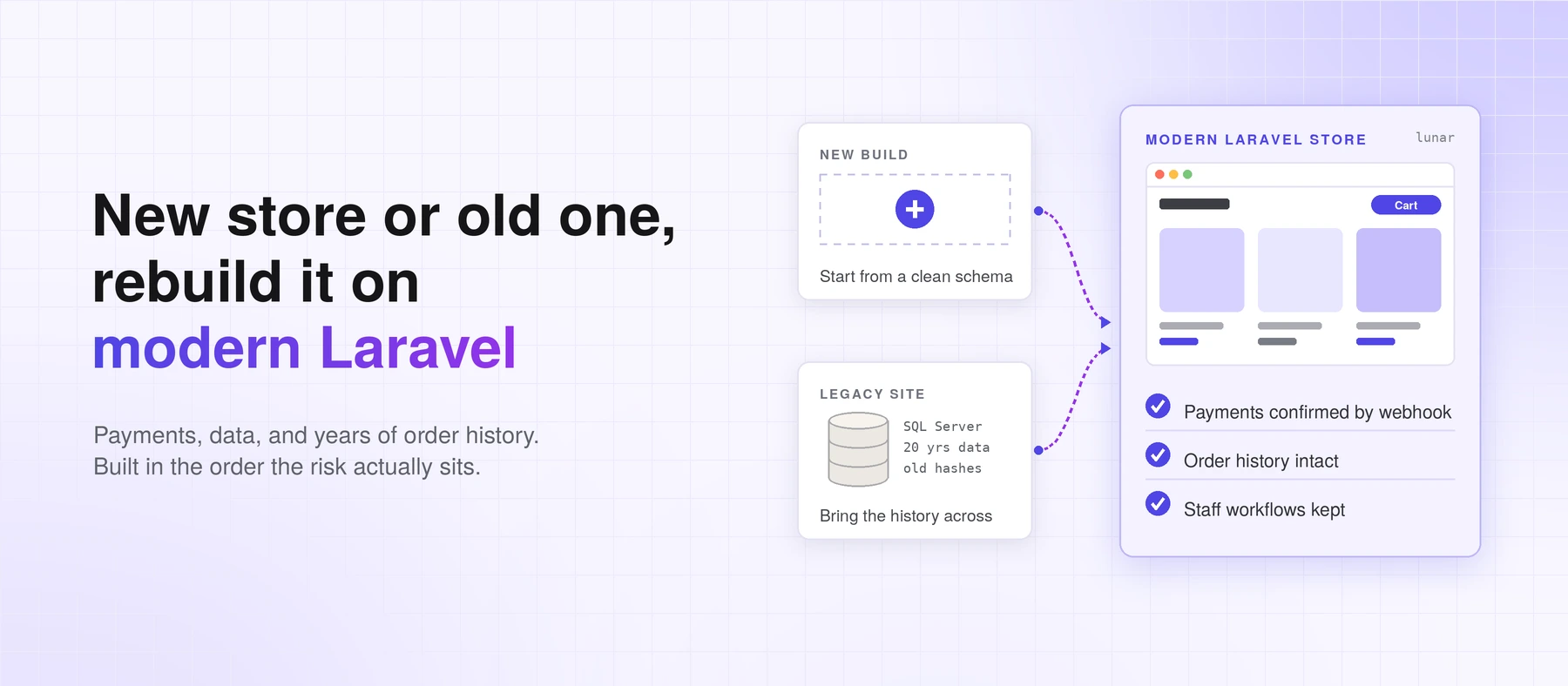
The storefront is the easy part.
I know that sounds backwards. The storefront is what the client signs off on and what the demo shows. But it’s rarely where an e-commerce project goes wrong.
The last store we rebuilt had twenty years of customers, orders, and staff notes sitting in a custom platform. None of the hard days on that project were about the product page. They were about payments, data, and the small custom workflows the business had built up over two decades.
So this guide covers how I’d build an e-commerce site with Laravel today, in the order the risk actually sits. And because most stores aren’t starting from zero, it spends real time on the legacy database migration too.
Key Principles in This Guide
- Prefer a commerce package (like Lunar) over building carts, pricing, and orders from scratch
- Store money as integer cents and always copy the price onto the order line
- Create the order as pending before taking payment
- Make every import re-runnable and fail loudly on bad rows
- Verify webhook signatures and make handlers idempotent
- Start the project by listing every piece of data and every workflow the business can’t lose
Custom Laravel or a Hosted Platform?
Start with the honest question. For a lot of stores, Shopify or a similar hosted platform is the right call. A small catalog, a standard checkout, standard shipping? You’ll launch faster and spend less. I’d tell a client that directly.
Custom starts to win when the business has its own way of working. Think staff notes on customer accounts, pricing tiers per customer group, reports the team checks every morning, or an affiliate program. On a hosted platform, each of those becomes another app, another monthly fee, and another update that might break a workflow.
My rule: if the business logic is standard, rent it. If the business logic is the business, own it.
And “custom” doesn’t mean “from scratch.” That’s the next decision.
Start With a Commerce Package, Not a Blank App
Carts, prices, taxes, discounts, customer groups, orders. These are solved problems, and they’re full of edge cases you don’t want to rediscover.
So I don’t build them by hand. We use Lunar, an open-source e-commerce package for Laravel. It gives you products, variants, carts, pricing, customer groups, and orders as a foundation. You still own every line of the app on top.
That split is the point. The package handles the well-understood parts. Your time goes into the parts that make the store different.
Here’s a small example of a detail you’d otherwise miss: guest carts. A shopper adds three items, then logs in. Should the cart disappear? Replace the old account cart? Merge with it? Lunar lets you pick merge or replace, and we chose merge. It’s one decision, but it turns into support tickets when nobody makes it.
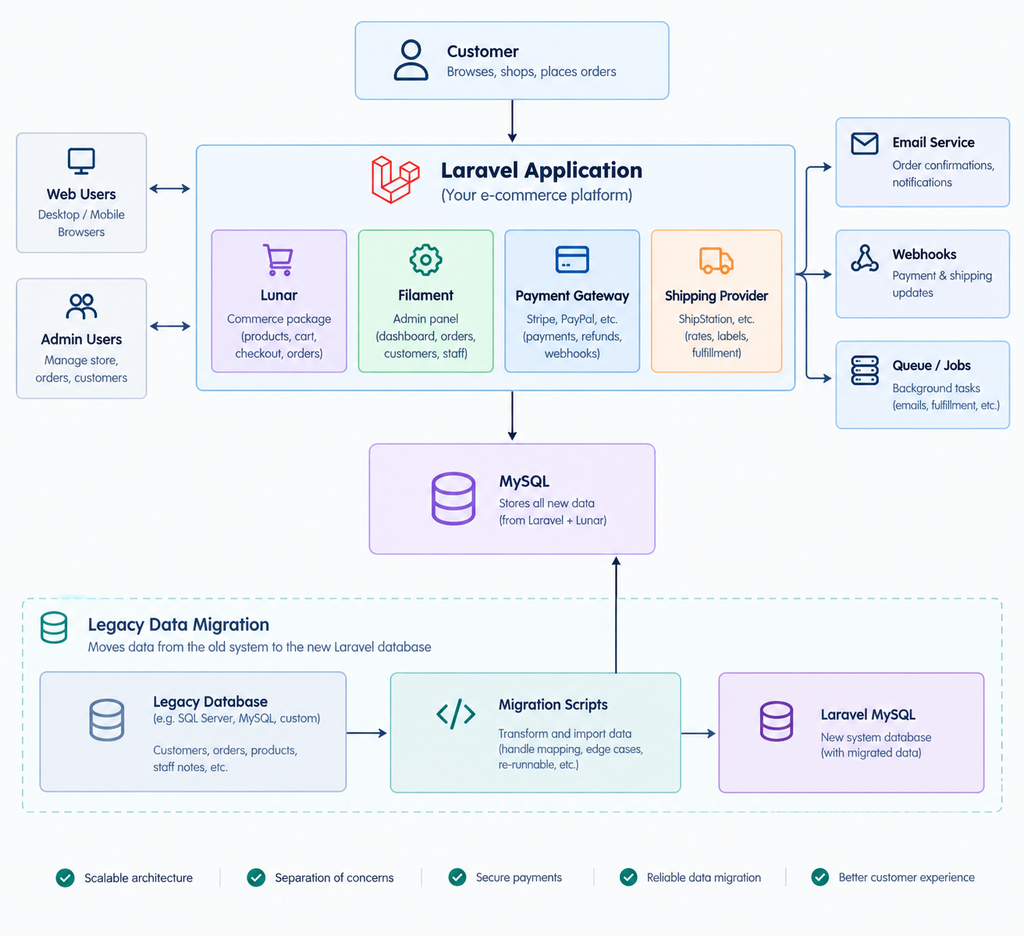
Store Money and Orders So History Stays True
With the package in place, the next thing to get right is how you store money. It sounds boring. It’s also where small mistakes get expensive.
My rule has two parts.
Store money as integer cents. Floats round badly, and a one-cent error repeats across thousands of orders. So 29.99 lives in the database as 2999. You only format it for display.
Copy the price onto the order line. Prices change, and products get deleted. If you rebuild an old order from today’s product price, history quietly rewrites itself. An order from 2011 should show what the customer paid in 2011.
Lunar follows both rules for its own prices and order lines. Where they bite is your own tables, and above all your import scripts. When you bring old orders across, write the historical price and product name onto each line:
$order->lines()->create([
    'product_id'       => $product->id,
    'description'      => $legacyLine->ProductName, // what they bought then
    'quantity'         => $legacyLine->Quantity,
    'unit_price_cents' => (int) round($legacyLine->UnitPrice * 100), // what they paid then
]);
Twenty years of order history is only worth keeping if it still tells the truth.
Checkout and Payments: Create the Order First
Once money is stored safely, it’s time to take it. This is the part I’d review hardest on any store, because mistakes here cost real money.
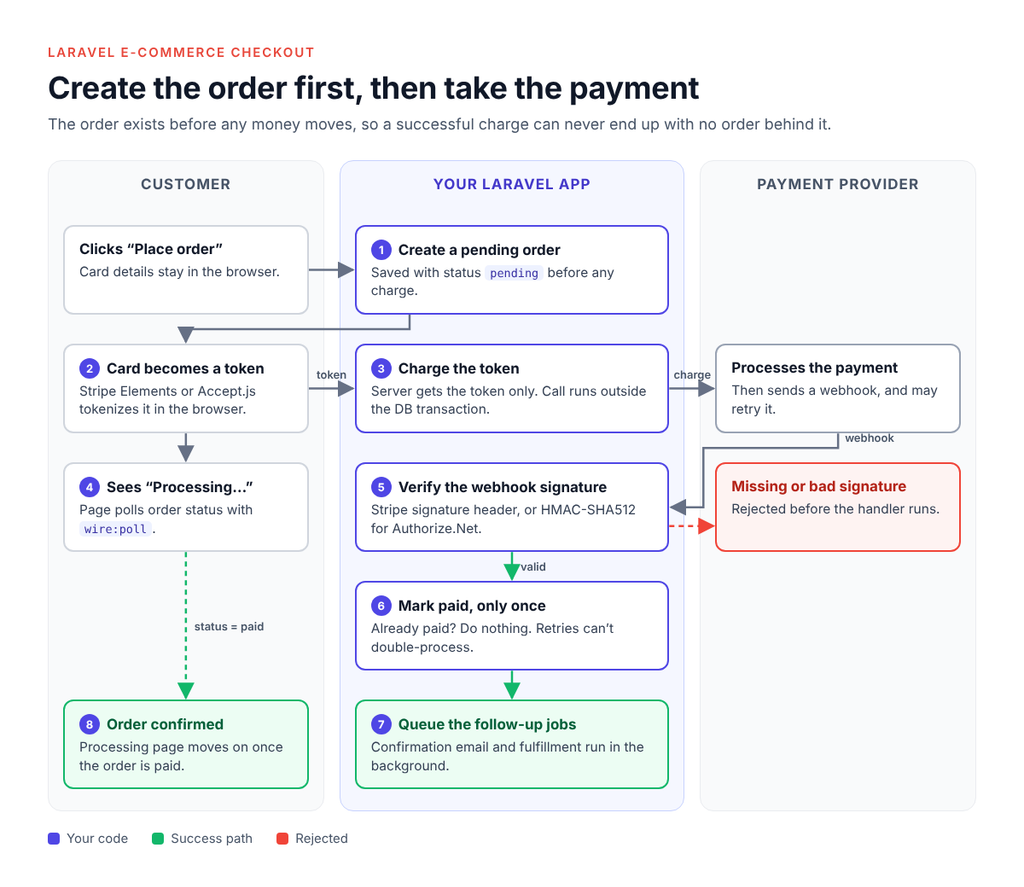
Pending order, then payment, then confirmation
I’ve seen this go wrong in a lot of inherited codebases. The card gets charged, something fails a second later, and there’s no order to show for it. Now support has a charge with no record behind it.
So the flow runs in a fixed order. Create the order as pending. Take the payment. Wait for the payment provider’s webhook to confirm it. Then let queued jobs handle the rest, like emails and fulfillment.
A record always exists before any money moves. If you want the code, our Laravel 12 architecture guide walks through it, including why the payment call must sit outside the database transaction.
Keep card numbers off your server
Every serious gateway offers a browser-side library that turns card details into a one-time token. With Authorize.Net it’s Accept.js. With Stripe it’s Stripe Elements. Your server only ever sees the token.
The payoff is big. Raw card numbers never touch your logs, your database, or your error tracker. Your PCI compliance scope stays much smaller too.
Check every webhook before you trust it
A webhook is just an HTTP request. Anyone can send one. So verify the signature every time, and reject anything that doesn’t match. Authorize.Net signs its webhooks with HMAC-SHA512. Stripe uses its own signature header.
There’s a catch, too. Once a webhook URL is public, scanners find it, and their junk requests fill your error tracker. We now reject any request without a signature header before the real handler runs.
Providers also retry. The same “payment succeeded” event can arrive twice, so the handler must be idempotent, meaning running it twice has the same result as running it once. Only mark the order paid if it isn’t paid already, and only queue the confirmation email on that change.
The “processing” page
After paying, the customer waits a few seconds for the webhook. So what do they see?
We show a plain “processing” page that checks the order status with Livewire’s wire:poll, with a meta refresh as a fallback. No hand-written JavaScript loops. As soon as the webhook marks the order paid, the page moves on.
Shipping: Show Real Rates at Checkout
Payment done. Now the order has to reach the customer, and shipping is where many stores quietly lose money.
Flat-rate shipping sounds simple. But someone always pays the difference. Either the customer overpays, or the business eats the cost. Live carrier rates at checkout fix that, and customers see what shipping really costs.
Labels get made later, in the background. A tool like ShipStation often needs two calls per label: create the shipment, then buy the label. My rule for anything like this is one queued job per step, linked in a chain. For integrations like this, use one queued job per step and keep enough state to make retries safe. If a job fails after the external API succeeds, a retry should be able to detect the existing shipment instead of creating a duplicate.
The Admin Panel Is Half the Product
So far, everything has been about the customer. But customers only see the storefront. Staff live in the admin panel all day, and on a store like this, that panel is where the business actually runs.
We build admin panels in Filament. (Here’s our checklist of Filament customizations to get right.) It gives you tables, filters, forms, and actions quickly, so the time goes into the store’s own workflows.
Twenty years of imported orders will slow down admin tables that felt fast in testing. Our guide to why admin panels get slow covers how to find and fix those queries.
An observer and a form fighting over the same field
One bug is worth sharing, because it’s easy to hit. Staff create customer accounts in the panel. An observer was supposed to put every new customer into the default customer group, which sets their pricing tier. But accounts created in the admin ended up with no group at all.
The cause was subtle. Filament doesn’t wrap create pages in a database transaction by default. So the observer’s after-commit code ran straight away, before the form saved its relationships. Then the form saved its own empty group field and removed the group the observer had just added.
We fixed it on the form side, by giving that select field the same default group. The lesson: when an observer and an admin form both set the same relationship, give the form the same default. Don’t count on the order things run in.
Migrating the Legacy Database
Now for the part that decides most rebuilds. Everything above assumes clean data. A store that has run for twenty years doesn’t have clean data.
Nobody notices a migration that goes well. Everybody notices one that doesn’t.
Start with a list, not with code
Before writing any import code, list every piece of data the business depends on. Not just the tables. The workflows behind them.
On our last rebuild, that list went well beyond products and orders:
- customer records and full order history
- order notes, plus the notes staff keep on customer accounts
- the reports the team actually opens
- which staff member each order belonged to, because commissions depend on it
Some of that lived in obvious tables. Some didn’t. Finding it now is far cheaper than finding it after launch.
Convert the schema, then read it yourself
Tools like SQLines will convert a SQL Server schema to MySQL. That saves a lot of typing. It doesn’t save you from reading the result.
SQL Server and MySQL disagree on more than syntax. Here’s a real one: the old data had negative primary keys. SQL Server is fine with that. Our MySQL columns were unsigned, so those rows had nowhere to go.
Make the import safe to run again
You won’t run the import once. You’ll run it in testing, in rehearsals, and one last time at cutover. So build it to run again without making a mess.
The trick is to keep the old ID in its own column and update by it:
DB::connection('legacy')
    ->table('Customers')
    ->orderBy('CustomerID')
    ->chunk(1000, function ($rows) {
        Customer::upsert(
            $rows->map(fn ($row) => [
                'legacy_id'  => $row->CustomerID,
                'email'      => strtolower(trim($row->Email)),
                'name'       => $row->FullName,
                'created_at' => $row->DateCreated,
            ])->all(),
            uniqueBy: ['legacy_id'],
            update: ['email', 'name'],
        );
    });
Add a unique index on legacy_id, and running this twice is harmless. There’s a bonus, too. When someone asks “where did this record come from?”, you can trace it straight back to the old system.
Never let the import skip rows quietly
If you remember one thing from this section, make it this one.
During one migration, some records never showed up in the new database. Nothing reported a problem. The culprit was insertOrIgnore(), and it does what its name says. On MySQL it runs INSERT IGNORE, which turns errors into warnings. Rows that break a foreign key are skipped. Out-of-range values, like a negative ID in an unsigned column, get changed without a word.
For a migration, you want the opposite. Let a bad row stop the run, so you fix it on purpose.
Watch for columns that change meaning
Old systems often cram two ideas into one column. New systems split them apart. That’s usually the right move. It can also break reports without anyone noticing.
Here’s a real one. An old orders table had one column for “the staff member on this order.” We split it in two: the staff member who helped place the order, and the sales rep. On new orders, only one of the two gets filled in.
Now picture the admin filter for “orders by staff member.” It checked just one column, so half the orders vanished from it. The report we got was short: “the orders filter isn’t working.” Once the filter matched either column, one staff member went from 3 orders to 17.
Two smaller details hid in there as well. Closed legacy accounts came across as soft-deleted customers, so the filter needed withTrashed() to show their orders. And the staff list has to include people who’ve left. Commissions are paid on old orders, and staff move on.
Don’t lock customers out on launch day
You can’t convert a password hash. You can only check it.
Older platforms often use something other than bcrypt. PBKDF2 is common on older .NET systems, for example. So on login, check the password against the old hash first. If it matches, save a new Laravel hash and throw the old one away:
if ($user->legacy_password_hash && LegacyPassword::check($password, $user)) {
    $user->forceFill([
        'password' => Hash::make($password),
        'legacy_password_hash' => null,
    ])->save();
}
LegacyPassword::check() is your own class. It has to match the old system’s algorithm, salt format, and iteration count exactly. Get that wrong, and every returning customer fails to log in on launch day. Test it with real accounts on a safe copy first.
The nice part? Customers never notice. The old hashes disappear as people log in.
Test the migration before you trust it
Run the full import on staging, from scratch, every time, using a recent copy of the real data. Time each run so you know how long cutover will take.
Then check it in layers. Compare row counts per table, then the numbers the business cares about: revenue per year, orders per customer, open balances. Keep a short list of awkward records, like the oldest customer, the largest order, and a closed account, and check them after every run. And ask staff to open the reports and customers they know. They’ll spot things no script checks for.
Finally, look at the catalog with your own eyes. Before one launch, we checked every live product between staging and production. We found four staging-only items, including a test product priced at $0.00. That’s exactly the kind of thing a customer finds first if you don’t.
Launch Is the Start, Not the Handoff
Data moved, numbers checked, store live. It’s tempting to call it done. Don’t. The first two weeks after launch matter as much as the build.
After our last launch, we met the client’s team every morning and went through every open item. What gets fixed today, what needs more information, and when the rest lands. That rhythm did more for their confidence than any feature.
A few technical habits help too. Watch your error tracker and failed jobs daily. Keep a staging copy that mirrors production. And if you change .env on a live server, rebuild the config cache with php artisan config:cache. A stale cache has caught us more than once.
Build the Risky Parts First
Here’s my position. Rent the commerce basics with a package like Lunar. Build the store’s own workflows on top. And put your best effort into the parts nobody sees: payments, data, and the migration.
Would I always build custom? No. If a store’s needs are standard and its data is simple, a hosted platform is cheaper and faster. That changes the day the business depends on workflows and history a hosted platform can’t carry.
If you’re planning a rebuild, start today with one list: every piece of data and every workflow your business can’t lose. It’s the most useful document you’ll write on the whole project.
Building a New Store or Migrating a Legacy One?
Whether you’re starting a brand-new e-commerce site or moving an old custom platform to Laravel while keeping your customers, orders, and history intact, the hard parts are almost always the same: data, payments, and workflows.
If you’d like a second opinion on the approach, tell us about your project or claim a free fix for one real problem in your current store.
FAQ
Is Laravel a good choice for building an e-commerce website? Yes, especially when the store has custom workflows, pricing, or reports. Laravel gives you full control, and packages like Lunar provide carts, pricing, and orders so you don’t build those from scratch. For a simple store with standard needs, a hosted platform may be faster and cheaper.
Should I use a Laravel e-commerce package or build everything myself? Use a package for the core: products, carts, pricing, and orders. Those are solved problems full of edge cases. Spend your own time on the workflows that make your business different.
How do you migrate a legacy e-commerce database to Laravel? List every piece of data and every workflow the business relies on. Convert the schema with a tool, then review it by hand. Build a re-runnable import that keeps the old IDs and stops on bad rows instead of skipping them. Then compare counts and business totals before cutover.
What happens to customer passwords when you migrate to Laravel? You can’t convert old hashes, but you can check them. On login, verify the password against the legacy hash. If it matches, save a new Laravel hash and delete the old one. Customers don’t notice, and old hashes disappear over time.
How should payments work in a Laravel e-commerce checkout? Create the order as pending first, then take payment, then confirm it from a verified webhook. Make the webhook handler safe to run twice, because providers retry. Keep card details in the browser with the gateway’s tokenization library, so your server only sees a token.
How long does it take to rebuild an e-commerce site in Laravel? It depends mostly on the data and workflows, not the storefront. A store with twenty years of orders and custom tools needs far more migration and testing time than a new store. Listing everything the business depends on is the best way to get a realistic estimate.
Tags

Apurva Prajapati
Co-founder at Larastaff
Related Articles
Filament Performance: Fix a Slow Admin Panel
Table of contentsHide 1. Check Your Versions First 2. Find the Cause Before You Change…
Laravel 12 Architecture: Where Business Logic Belongs
Table of contentsHide 1. Check What Laravel Already Gives You 2. The Fat Controller, and…
Laravel 12 Breaking Changes to Fix After Upgrading
Table of contentsHide What You Don't Need to Change Find What Affects Your App in…
Leave a Comment