
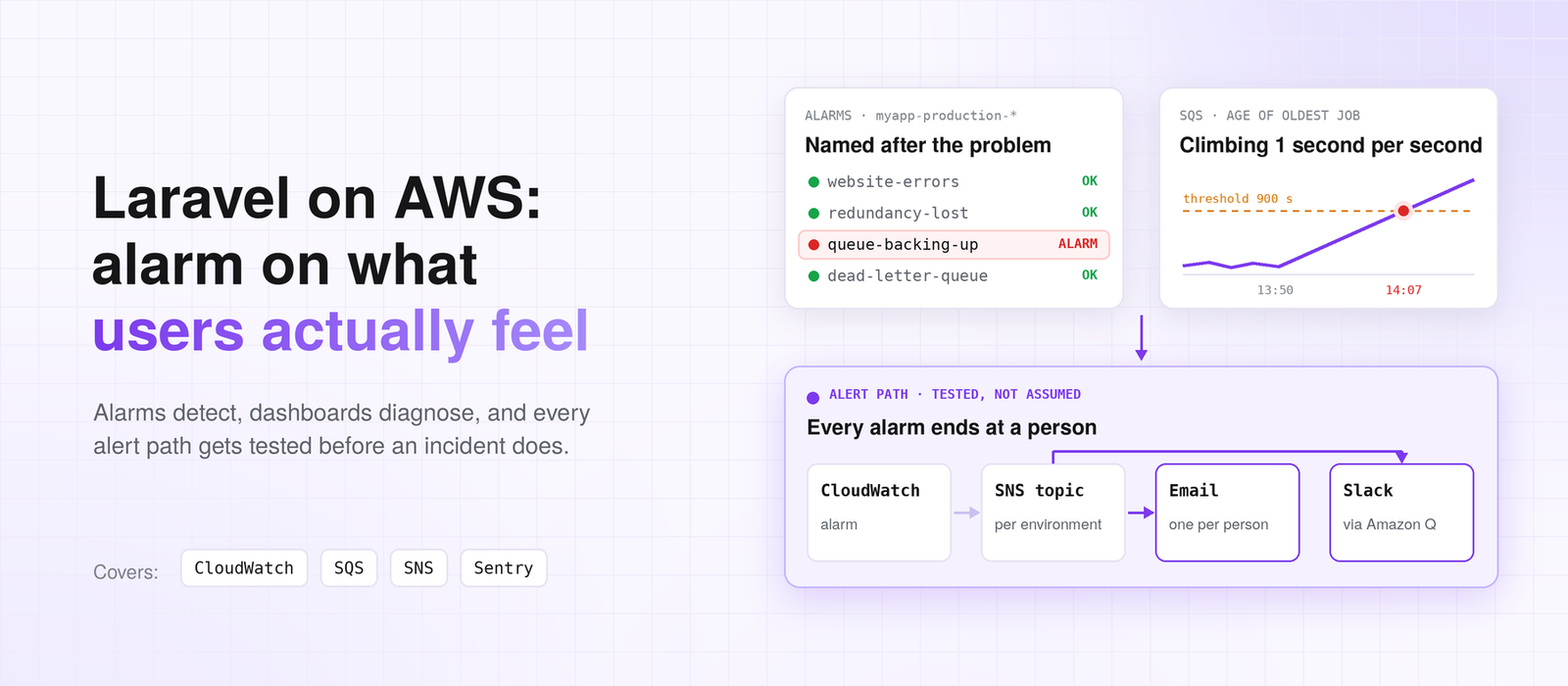
A queue stopped processing jobs at 13:50. Nothing crashed and nothing threw an error. The jobs just sat there. The CloudWatch alarm told us at 14:07.
Seventeen minutes is a long time when those jobs carry order emails and payment webhooks. The alarm worked exactly as configured. It was configured to be late.
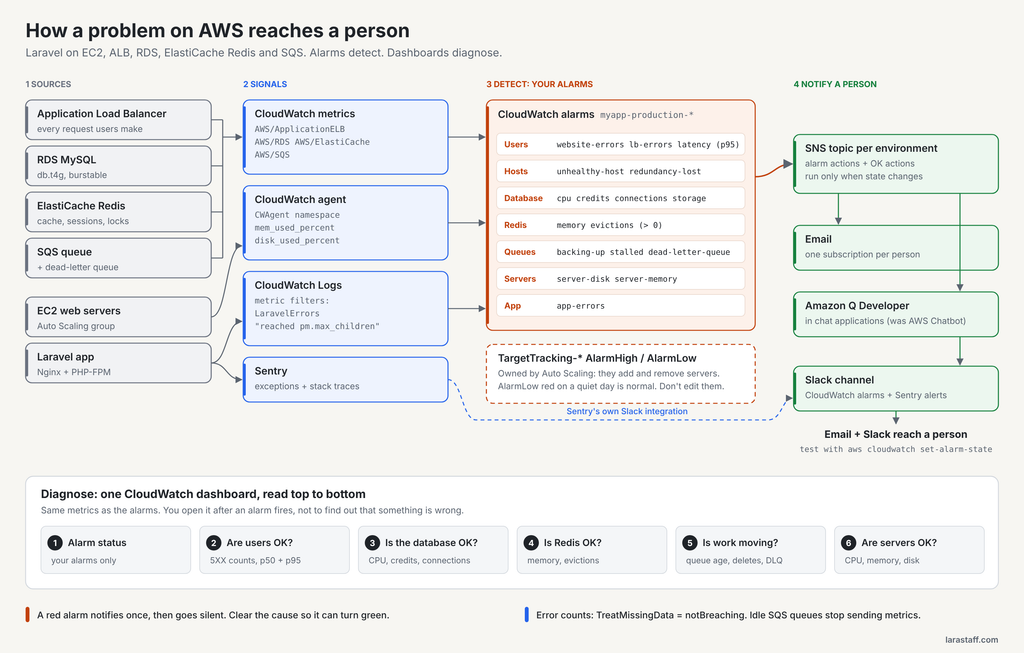
This post is the monitoring setup we use for Laravel apps on AWS. It covers which alarms to set and why, how to lay out the dashboard, and how to make sure an alert reaches a person. It also covers the places where AWS metrics quietly lie to you.
CPU Is the Wrong First Alarm
Most AWS monitoring guides start with EC2 CPUUtilization. I understand why. It’s the first graph AWS shows you, and a CPU alarm takes two minutes to create.
But high CPU is rarely what hurts you. A stalled queue uses almost no CPU. A database that ran out of disk is calm right up to the moment writes fail. A slow third-party API makes every request wait while your servers sit idle.
My rule is simple. Alarm on what the customer feels, and on work that has stopped. Keep everything else on the dashboard.
That gives you two tools with two different jobs. Alarms detect. They should be few, and each one should mean “a person needs to look now.” Dashboards diagnose. They can hold forty graphs, because you open them when something is already wrong.
If an alarm fires and nobody needs to act, it’s a dashboard graph in the wrong place. Move it.
Three Places Problems Show Up
On Laravel apps on AWS, problems surface in three places. Each one catches something the others miss.
CloudWatch metrics cover the infrastructure: the load balancer, RDS, ElastiCache, SQS, and EC2. They tell you that something is wrong, but rarely why.
CloudWatch Logs hold what the server actually said. On one of our projects, this line showed up there while CPU looked perfectly normal:
WARNING: [pool www] seems busy (you may need to increase pm.start_servers,
or pm.min/max_spare_servers), spawning 8 children, there are 0 idle, and 34 total children
PHP-FPM had run out of idle workers, so new requests waited for a process to start. No metric showed that.
Sentry covers application exceptions. A failed webhook or a QueryException shows up there with a stack trace. CloudWatch never sees it.
You need all three. With only Sentry, you hear about infrastructure problems from customers. With only CloudWatch, you know something broke but spend an hour finding out what.
The Alarm Set We Start With
Our Laravel on AWS production architecture guide covers the infrastructure itself. This is the alarm set we put on top of it. It assumes EC2 behind an Application Load Balancer, with RDS MySQL, ElastiCache Redis, and SQS:
| Alarm name | Fires when | What it means |
| myapp-production-website-errors | HTTPCode_Target_5XX_Count >= 10, 2 of 2 five-minute periods | Users are getting error pages from the app |
| myapp-production-lb-errors | HTTPCode_ELB_5XX_Count >= 10, 2 of 2 five-minute periods | The load balancer can’t reach the app |
| myapp-production-latency | TargetResponseTime p95 > 2 seconds, 3 of 3 five-minute periods | Pages are slow enough to notice |
| myapp-production-unhealthy-host | UnHealthyHostCount >= 1, 2 of 2 five-minute periods | A web server is failing health checks |
| myapp-production-redundancy-lost | HealthyHostCount < 2, 2 of 2 five-minute periods | Only one web server is left |
| myapp-production-app-errors | LaravelErrors > 20 in 5 minutes | Laravel is logging errors faster than normal |
| myapp-production-database-cpu | RDS CPUUtilization > 80, 3 of 3 five-minute periods | The database is working too hard |
| myapp-production-database-credits | RDS CPUCreditBalance < 60, 2 of 2 five-minute periods | The database has used up its burst |
| myapp-production-database-connections | DatabaseConnections near your max_connections | Few connections are left |
| myapp-production-database-storage | FreeStorageSpace < 20 GiB | The disk is filling up |
| myapp-production-redis-memory | DatabaseMemoryUsagePercentage > 75, 2 of 2 five-minute periods | Redis is running out of room |
| myapp-production-redis-evictions | Evictions > 0 in 5 minutes | Redis has started throwing keys away |
| myapp-production-queue-backing-up | ApproximateAgeOfOldestMessage > 900 (Maximum), 2 of 2 one-minute periods | Jobs have waited over 15 minutes |
| myapp-production-queue-stalled | Jobs waiting and none deleted, 5 one-minute periods | Nothing is being processed |
| myapp-production-failed-jobs | LaravelFailedJobs (Sum) >= 1 in 5 minutes | A job used up all its tries |
| myapp-production-dead-letter-queue | DLQ ApproximateNumberOfMessagesVisible >= 1 | A job escaped Laravel’s failure handling |
| myapp-production-server-disk | disk_used_percent > 80, Maximum across the Auto Scaling group | A web server’s disk is filling up |
| myapp-production-server-memory | mem_used_percent > 90, Maximum across the Auto Scaling group | A web server is close to swapping |
Look at the names before the metrics. Each one says what is wrong for the business, not which metric moved. At 2 AM, “redundancy-lost” tells you what you’re dealing with. HealthyHostCount < 2 makes you translate first.
They all follow one pattern, too: app, environment, problem. That makes the alarm list easy to filter, which matters more than you’d think. More on that below.
Treat the thresholds as starting points. Tune them to your traffic after a few weeks of real data.
The load balancer: what users feel
The Application Load Balancer sees every request, so it’s the closest thing you have to the user’s view.
HTTPCode_Target_5XX_Count counts 5XX responses your app returned. We set the threshold at 10. A single 500 from a bot sending junk to a form isn’t worth waking anyone.
Don’t stop there, though. Errors the load balancer creates itself, like a 502 when no server answers, go to a separate metric, HTTPCode_ELB_5XX_Count (ALB metrics reference). If you only alarm on target errors, a total outage can look quiet. Your app isn’t returning errors, because nothing is reaching your app.
For TargetResponseTime, use the p95 statistic. An average hides the slow requests that make people leave.
Two host alarms that answer different questions
unhealthy-host and redundancy-lost sound like the same alarm. They aren’t.
The unhealthy-host alarm fires when any server fails its health check. That’s a server problem: a bad deploy, a full disk, PHP-FPM stuck. For this one, AWS suggests the Minimum statistic, which only rises above zero when the target is unhealthy from every load balancer node.
The redundancy-lost alarm fires when fewer than two healthy servers are left, whatever the reason. Maybe a server failed. Maybe a new instance never came up. With one server left, users notice nothing. But you’re one failure away from a full outage. This alarm tells you while you can still fix it calmly. It’s my favourite alarm on the list.
The database: it ends badly, so alarm early
RDS gets the most alarms, because a database problem stops everything at once.
FreeStorageSpace is measured in bytes. A 20 GiB threshold shows in the console as 21474836480. It’s an easy place to be wrong by a factor of a thousand. A full disk stops all writes, so this alarm fires on a single datapoint.
Set the DatabaseConnections threshold from your own max_connections. A number copied from a blog post, this one included, won’t match your setup. PHP-FPM workers, queue workers, and the scheduler each open their own connections. Add servers during a traffic spike and the count climbs fast.
CPUCreditBalance only matters on burstable instances like db.t4g. These run above their baseline CPU by spending saved credits. AWS configures db.t4g in Unlimited mode, so it can keep bursting for an additional charge. A low credit balance means the database has been running hot for a while. Treat it as a sign the instance is too small for its current work.
Redis: the alarm set at zero
DatabaseMemoryUsagePercentage above 75 is the early warning that Redis is filling up.
Evictions above zero is the alarm people question. Evictions are keys Redis threw away because it hit its memory limit (ElastiCache metrics). For a pure page cache, a few evictions are harmless.
But a Laravel app often keeps more than cache in Redis. Laravel’s scheduler uses cache locks for withoutOverlapping() and onOneServer() (Laravel scheduling docs). Many apps also keep sessions there. Evict a session and a customer is logged out mid-checkout. Evict a lock and a scheduled task can run twice. If anything besides plain cache lives in Redis, keep this threshold at zero.
Queues: the alarm that was late
This is where the 17-minute gap in the opening came from. The queue-backing-up alarm watches ApproximateAgeOfOldestMessage, the age of the oldest job still waiting.
I like this metric more than queue length, because a long queue that drains quickly is fine. The problem is the threshold. An alarm at 900 seconds can’t fire until a job has waited 15 minutes. Our oldest job crossed that line at 14:05. The alarm then needed two one-minute datapoints above it, so it went red at 14:07. Seventeen minutes, exactly as configured.
Looking at the graph afterwards, the age line climbed at exactly one second per second from 13:50. That slope means nothing was being processed at all. Not slowly. Not at all.
So the age alarm needs a partner that asks a different question: is anything being finished? That’s the queue-stalled alarm, and it has a trap, which gets its own section below.
Failed jobs are where Laravel and SQS disagree, and it’s easy to alarm on the wrong one. When a job runs out of its $tries, Laravel’s worker marks it failed, deletes the message from SQS, and writes it to the failed_jobs table. The message never reaches your SQS dead-letter queue. A DLQ alarm stays green while orders quietly fail to reach fulfilment.
So the failed-jobs alarm watches a metric we publish ourselves. A listener on Laravel’s queue failure event sends one datapoint per failed job:
// app/Providers/AppServiceProvider.php

use Aws\CloudWatch\CloudWatchClient;
use Illuminate\Queue\Events\JobFailed;
use Illuminate\Support\Facades\Queue;

public function boot(): void
{
    Queue::failing(function (JobFailed $event) {
        rescue(fn () => (new CloudWatchClient([
            'version' => 'latest',
            'region' => config('queue.connections.sqs.region'),
        ]))->putMetricData([
            'Namespace' => 'MyApp',
            'MetricData' => [[
                'MetricName' => 'LaravelFailedJobs',
                'Dimensions' => [
                    ['Name' => 'Environment', 'Value' => app()->environment()],
                ],
                'Value' => 1,
                'Unit' => 'Count',
            ]],
        ]));
    });
}
The rescue() wrapper matters. If CloudWatch is unreachable, you still want Laravel to finish recording the failure. The alarm uses the Sum statistic, fires at 1 or more in five minutes, and treats missing data as not breaching. Because each failure is a fresh datapoint, the alarm goes back to OK after five quiet minutes, and the next failure alerts again. Even one failure means real work didn’t happen, so the threshold is 1, and it should be.
Keep the SQS dead-letter queue as well, as a backstop. It catches the jobs Laravel never gets to fail: jobs with no tries limit, and queues where the redrive policy’s maxReceiveCount is lower than $tries, so SQS moves the message before Laravel’s last attempt. Set maxReceiveCount higher than $tries. After that, a message in the DLQ means something is misconfigured, and you want to hear about it.
Application errors: a rate, not a list
LaravelErrors is a custom metric that counts errors from the Laravel application. The alarm fires above 20 in five minutes.
Why have this when Sentry already catches exceptions? Sentry is great at telling you about each new kind of error. It’s less good at telling you that a known error just jumped from twice an hour to thirty times in five minutes. The CloudWatch rate alarm catches the spike, and Sentry gives you the stack trace.
Servers: the metrics EC2 doesn’t send
EC2 doesn’t report memory or disk usage on its own. You need the CloudWatch agent. It publishes mem_used_percent and disk_used_percent into the CWAgent namespace (agent metrics reference).
These are easy to skip because the load balancer alarms feel like enough. They aren’t. Disk is the one that bites Laravel apps. Logs in storage/logs, old releases from deploys, and compiled views all grow quietly, until one server fails its health check for no obvious reason.
There’s a trap here if your servers run in an Auto Scaling group. By default the agent tags these metrics with the instance ID, and an alarm watches one exact set of dimensions. When Auto Scaling replaces a server, the new one publishes under a new instance ID. Your alarm is left watching a server that no longer exists. It doesn’t fire. It just goes quiet.
The fix is in the agent config. Add the Auto Scaling group name to every metric, and have the agent publish an extra copy aggregated by group:
{
 "metrics": {
    "append_dimensions": {
      "AutoScalingGroupName": "${aws:AutoScalingGroupName}",
      "InstanceId": "${aws:InstanceId}"
    },
    "aggregation_dimensions": [["AutoScalingGroupName"]],
    "metrics_collected": {
      "mem": { "measurement": ["mem_used_percent"] },
      "disk": {
        "measurement": ["used_percent"],
        "resources": ["/"]
      }
    }
  }
}
Alarm on the group-level series, using the Maximum statistic. If one of four servers hits 95 percent disk and the others sit at 40, the Average is about 54 and nothing fires. Maximum shows you the worst server, whichever instance that happens to be today.
For PHP-FPM, turn the log into a metric. A CloudWatch Logs metric filter on the phrase "reached pm.max_children" counts each time FPM hits its hard ceiling. One catch: metric filters aren’t retroactive. They only count log lines that arrive after you create them, so set them up before the bad day.
Why “Zero Jobs Finished” Is a Trap on a Quiet Queue
The obvious stall alarm is NumberOfMessagesDeleted equal to zero for a few minutes. In SQS, a deleted message is a finished job. No deletes, no progress.
On a quiet night, though, the queue is empty, so nothing is deleted. That alarm would wake someone every night for a healthy system.
The question you want answered is narrower: are jobs waiting, and is nothing finishing? CloudWatch metric math can ask that directly. It supports IF with AND (metric math reference). Here’s the alarm as CloudFormation:
QueueStalledAlarm:
Type: AWS::CloudWatch::Alarm
  Properties:
    AlarmName: !Sub '${AppName}-${EnvName}-queue-stalled'
    AlarmDescription: Jobs are waiting but none are finishing
    ComparisonOperator: GreaterThanOrEqualToThreshold
    Threshold: 1
    EvaluationPeriods: 5
    DatapointsToAlarm: 5
    TreatMissingData: notBreaching
    AlarmActions: [!Ref AlertsTopic]
    OKActions: [!Ref AlertsTopic]
    Metrics:
      - Id: visible
        ReturnData: false
        MetricStat:
          Metric:
            Namespace: AWS/SQS
            MetricName: ApproximateNumberOfMessagesVisible
            Dimensions:
              - Name: QueueName
                Value: !GetAtt JobsQueue.QueueName
          Period: 60
          Stat: Maximum
      - Id: deleted
        ReturnData: false
        MetricStat:
          Metric:
            Namespace: AWS/SQS
            MetricName: NumberOfMessagesDeleted
            Dimensions:
              - Name: QueueName
                Value: !GetAtt JobsQueue.QueueName
          Period: 60
          Stat: Sum
      - Id: stalled
        Label: Queue stalled
        Expression: IF(visible > 0 AND FILL(deleted, 0) == 0, 1, 0)
        ReturnData: true
Five one-minute periods is a starting point. If your slowest normal job takes eight minutes and you run one worker, this alarm will fire during that job. Set the window longer than your slowest job.
Keep the age alarm as well. The stall alarm catches “nothing is moving.” The age alarm catches “moving, but falling behind.”
One more detail. On a standard SQS queue, a message received three or more times without being deleted moves to the back. So one bad job doesn’t freeze the age metric. FIFO queues are different. A failed message blocks its whole message group until it’s deleted, expires, or goes to a dead-letter queue (SQS metrics reference). If you use FIFO, a dead-letter queue isn’t optional.
Red Alarms: The Ones to Ignore and the One You Can’t
Open the CloudWatch alarm list on a typical Auto Scaling app and you’ll often see red that nobody is worried about. Some of it is fine. Some of it is the most dangerous thing on the page.
The Auto Scaling alarms: leave them alone
Alarms that start with TargetTracking– belong to your Auto Scaling policy. We scale on RequestCountPerTarget, the number of requests each server handles. Auto Scaling creates an AlarmHigh alarm that adds servers and an AlarmLow alarm that removes them.
When the site is quiet and the group is already at its minimum size, there’s nothing left to remove. So the AlarmLow alarm sits in ALARM for days. That’s normal.
Don’t touch these alarms. AWS says not to create, edit, or delete the alarms a target tracking policy uses. Auto Scaling owns them and may replace them itself. If you want different behaviour, change the scaling policy.
And notice what we scale on: request count per server. It’s the same idea as the alarms. Measure the load users create, and let CPU follow from it.
A red dead-letter queue alarm: one email, then silence
An alarm doesn’t keep notifying you while it stays red. Apart from Auto Scaling actions, alarm actions run only on state transitions. They don’t repeat while the condition lasts.
So picture a DLQ alarm that turned red and nobody cleared the queue. It sent one email. Every job that failed after that arrived in silence, for as long as the alarm stayed red.
Two habits prevent this. First, clear the DLQ on purpose. Replay the jobs that should run, delete the ones that shouldn’t, and let the alarm go green. Then the next failure sends a fresh alert.
Second, name your own alarms so you can filter out the Auto Scaling noise. Filter by myapp-production and you see only alarms that mean something to a person. Every one of them should be green. If one isn’t, somebody owns it today.
Reading p95 Without Fooling Yourself
On one project, the p95 TargetResponseTime graph showed 20 seconds at 6:05 PM. It looked like an outage.
Before you panic over a p95 spike, check two things. First, check RequestCount for the same period. If only ten requests came in, p95 is basically your slowest one. One heavy admin export can produce that number.
Second, compare p50 with p95. If both jumped, everything was slow, so look at shared things: database CPU, connections, or PHP-FPM workers. If only p95 jumped, a few endpoints were slow. That’s usually one heavy query or a synchronous call to a third-party API.
To find which requests were slow, you need ALB access logs. Ours weren’t on at the time, so we worked backwards from Nginx logs, RDS metrics, and Laravel’s logs. It took far longer than it should have. Turn access logs on before you need them.
Building the Dashboard: One Screen, Read Top to Bottom
A good dashboard answers questions in the order you’d ask them during an incident. I lay it out like this:
- Alarm status. One row showing your own alarms, without the Auto Scaling ones. If something there is red, it’s real.
- Are users OK? ALB
RequestCount, both 5XX counts, and p50 and p95 response time on one graph. - Is the database OK? RDS CPU, credit balance, connections, free storage, and read and write latency.
- Is Redis OK? Memory usage and evictions.
- Is background work moving? Visible messages, age of the oldest message, and deleted messages for each queue, plus the DLQ count.
- Are the servers OK? CPU, memory, and disk from the CloudWatch agent, plus the PHP-FPM metric filter count.
Put p50 and p95 on the same graph. The gap between them tells you more than either line alone.
I’d keep the dashboard in the same CloudFormation stack as the infrastructure, using an AWS::CloudWatch::Dashboard resource. A dashboard clicked together in the console drifts. Someone renames a queue, and one graph goes empty with no error. In the template, the queue name and the graph come from the same place.
Getting Alerts to a Person
An alarm nobody sees is worse than no alarm, because it gives you false confidence.
Our alarms publish to an SNS topic per environment, and people subscribe by email. Subscribe each person separately rather than one shared mailing list. AWS warns that one recipient on a list can unsubscribe everyone.
For Slack, map the same SNS topic to a channel. The AWS service for that is Amazon Q Developer in chat applications, formerly AWS Chatbot (AWS docs). Sentry alerts go to Slack through Sentry’s own integration.
Then test the whole path. On one project, our Sentry-to-Slack alert didn’t fire at all. The Sentry app hadn’t been invited to the private channel, and nothing told us. Sentry’s “Send Test Notification” button found it in a minute. For CloudWatch, you can force an alarm into ALARM from the CLI:
aws cloudwatch set-alarm-state \
 --alarm-name myapp-production-queue-stalled \
  --state-value ALARM \
  --state-reason "Testing the alert path"
This does run the alarm’s actions, and the alarm returns to its real state within seconds. If the message doesn’t reach your phone or your Slack channel, neither will a real incident.
Watch your monitoring tool’s own limits, too. On one project, Sentry used up its monthly quota for performance tracing. Sentry gives each data category its own quota, so error alerts kept working. But we lost request timing data until the quota reset. Sample traces below 100 percent and leave health-check routes out of tracing.
Where AWS Metrics Quietly Lie
Some of the hardest problems are graphs that look fine because the data isn’t there.
No traffic means no data. ALB metrics are only reported when requests flow through the load balancer. Set TreatMissingData to notBreaching on error-count alarms, or quiet hours will leave them stuck in INSUFFICIENT_DATA (missing data reference).
Quiet queues go to sleep. An SQS queue with no messages and no activity for over six hours stops sending metrics. When it wakes up, metrics can be delayed by up to 15 minutes (SQS CloudWatch docs). An alarm that treats missing data as breaching will page you for an idle queue.
A stopped database sends nothing. If you stop non-production RDS instances at night to save cost, metric alarms won’t tell you when one fails to start. We’ve seen a start fail with an “insufficient instance capacity” error for that instance type in that Availability Zone. Subscribe to RDS events for anything you start and stop on a schedule.
Permissions can hide graphs. CloudWatchLogsReadOnlyAccess only covers logs. A developer with just that policy sees errors on every metric graph. Metrics need CloudWatchReadOnlyAccess, which covers both. The names are close enough that this is an easy mistake.
What Monitoring Can’t Tell You
Monitoring tells you a payment webhook job failed. It doesn’t make that job safe to retry. That depends on idempotency: running the same job twice gives the same result as running it once.
When the queue in the opening stalled, the work didn’t end when the jobs started moving again. We had to check which jobs were now 20 minutes stale and whether any needed manual follow-up. Plan for that before it happens, especially for anything that touches money or customer emails. If you’re not sure your queue setup survives a stall cleanly, our DevOps as a Service team reviews exactly this.
The Short Version
Alarm on what customers feel and on work that has stopped. Keep everything else on a dashboard you open when you’re already investigating. Name alarms after the problem, keep your own list green, and test every alert path before a real incident tests it for you.
One thing would change this advice. With enough steady traffic, CloudWatch anomaly detection can learn a baseline and replace some of these fixed thresholds. Most small and mid-sized Laravel apps aren’t there yet.
If you do one thing today, open your queue alarms. Ask: if workers stopped right now, how many minutes until a person knows? If the answer is “15 or more,” add the stall alarm above.
If you’d rather have someone look at your setup, send us one real problem from your backlog. We’ll fix it free, with no sales call.
FAQ
What should I monitor first on AWS for a web application?
Start with what users feel: load balancer 5XX errors from both the app and the load balancer, and p95 response time. Then add database storage and connections, and a stall alarm on each queue. EC2 CPU can wait.
Does CloudWatch monitor EC2 memory and disk usage?
Not by default. You need the CloudWatch agent, which publishes mem_used_percent and disk_used_percent to the CWAgent namespace (AWS docs). On an Auto Scaling group, aggregate them by AutoScalingGroupName and alarm on Maximum, or your alarms lose track of replaced instances.
How do I send CloudWatch alarms to Slack?
Point the alarm’s action at an SNS topic. Then map that topic to a Slack channel in Amazon Q Developer in chat applications, formerly AWS Chatbot (AWS docs). Test it with aws cloudwatch set-alarm-state.
Why is my CloudWatch alarm still “In alarm” but I’m not getting notifications?
Alarm actions only run when the state changes (AWS docs). An alarm that stays red sent one notification when it turned red and nothing since. Fix the cause so it returns to OK, and the next problem will alert again.
How do I know if my SQS queue has stopped processing?
ApproximateAgeOfOldestMessage rising at one second per second means nothing is being processed. For faster detection, alarm when visible messages are above zero and NumberOfMessagesDeleted is zero, using metric math. Don’t alarm on zero deletes alone, or quiet periods will page you.
Is a CloudWatch dashboard enough for monitoring?
No. A dashboard only helps when someone is looking at it. Alarms do the detecting, and the dashboard helps you diagnose once an alarm fires. You also need error tracking, such as Sentry, for exceptions infrastructure metrics never show.
Tags

Parth Khunt
Tech Lead
Related Articles
Filament Performance: Fix a Slow Admin Panel
Table of contentsHide 1. Check Your Versions First 2. Find the Cause Before You Change…
Upgrade Laravel 10 to 12: What Breaks and…
Table of contentsHide Why Laravel Upgrades Matter The safest Laravel 10 to 12 upgrade path…
Laravel 12 Architecture: Where Business Logic Belongs
Table of contentsHide 1. Check What Laravel Already Gives You 2. The Fat Controller, and…
Leave a Comment